
Email list hygiene guide 2026: clean your list and improve deliverability
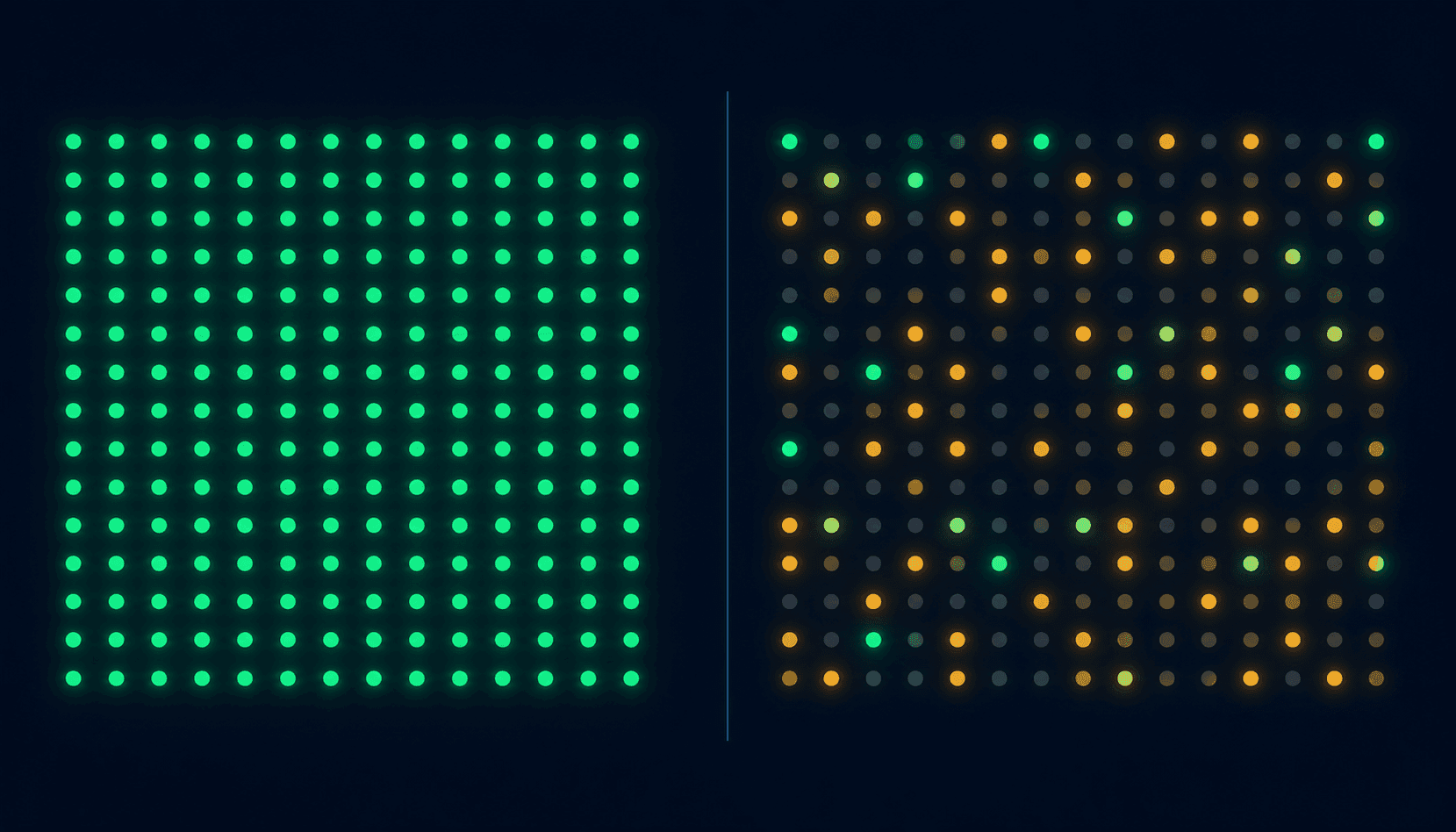
How to remove harmful addresses, prune inactive contacts, and run re-engagement campaigns that protect your sender reputation -- with a step-by-step monthly workflow.
Quick answer
Email list hygiene is the ongoing process of removing invalid, inactive, and harmful addresses from your mailing list. Remove hard bounces within 24 hours. Suppress addresses with 3 or more consecutive soft bounces. Run re-engagement campaigns for contacts silent for 90 days and suppress those who do not respond. Keep hard bounce rates below 0.5% per campaign and spam complaint rates below 0.1%. A clean list of 10,000 engaged contacts delivers better inbox placement than a dirty list of 50,000.
Key takeaways -- 16 answered questions below
- --Hard bounces must be suppressed immediately -- every re-send damages your sender reputation score
- --Spam complaint rates above 0.1% trigger inbox filtering at Google and Yahoo Mail
- --Email lists decay at roughly 22% per year -- inactive contacts accumulate even with perfect practices
- --Re-engagement campaigns recover 5 to 15% of inactive contacts before permanent suppression
- --Email verification and list hygiene are complementary -- verification checks validity at signup, hygiene manages behavior over time
- --Google Postmaster Tools is free and shows domain reputation, spam rates, and authentication signals for Gmail specifically
In this guide
- 1. What is email list hygiene?
- 2. Why email lists decay over time
- 3. The cost of a dirty list
- 4. Hard bounces vs soft bounces
- 5. Engagement-based cleaning
- 6. Spam traps: what they are and how to avoid them
- 7. Re-engagement campaigns
- 8. Decision framework: when to clean vs re-engage vs suppress
- 9. Email list hygiene workflow (8-step monthly process)
- 10. Email hygiene vs email verification
- 11. Email list hygiene metrics to monitor
- 12. Role-based and shared email addresses
- 13. Google Postmaster Tools for hygiene monitoring
- 14. ESP suppression lists and how they work
- 15. Email list cleaning best practices
- 16. Frequently asked questions (16 questions)
- 17. Final verdict
- 18. Tools used in this guide
- 19. Related guides
What is email list hygiene?
Direct answer: Email list hygiene is the ongoing practice of identifying and removing email addresses that are invalid, inactive, or dangerous to your sender reputation. It is not a one-time import clean -- it is a continuous process that runs after every campaign and on a monthly audit cycle.
A healthy list contains contacts who have explicitly opted in, have valid addresses, and have demonstrated recent engagement. A dirty list accumulates invalid addresses from typos or domain closures, former employees whose addresses still receive mail at a shared inbox, spam trap addresses planted by anti-spam organizations, and contacts who signed up years ago and have not opened an email since.
Internet service providers (ISPs) including Google and Microsoft (Outlook / Hotmail) evaluate your sending behavior to assign a domain reputation score. That score determines whether your emails reach the inbox, the spam folder, or are blocked entirely. High bounce rates and high complaint rates are the two signals most damaging to that score. Both are preventable through consistent hygiene.
The Google Email Sender Guidelines updated in 2024 now require bulk senders to keep spam complaint rates below 0.3% and hard bounce rates below 2%. These are minimum thresholds -- best practice is to operate well below them.
Why email lists decay over time
Industry benchmarks from Mailchimp and Klaviyo consistently show that email lists decay at approximately 22 to 25% per year. That means without any active hygiene, roughly one in four contacts on your list becomes a deliverability risk within 12 months.
The primary drivers of list decay are:
- Job changes: Corporate email addresses become invalid when employees leave
- Domain closures: Small businesses shut down, killing all addresses at that domain
- Inbox abandonment: Contacts create a new personal address and stop checking the old one
- ISP account expiration: Free email providers recycle dormant accounts after 12 to 24 months of inactivity
- Preference shift: Contacts who remain reachable but simply stop engaging with email
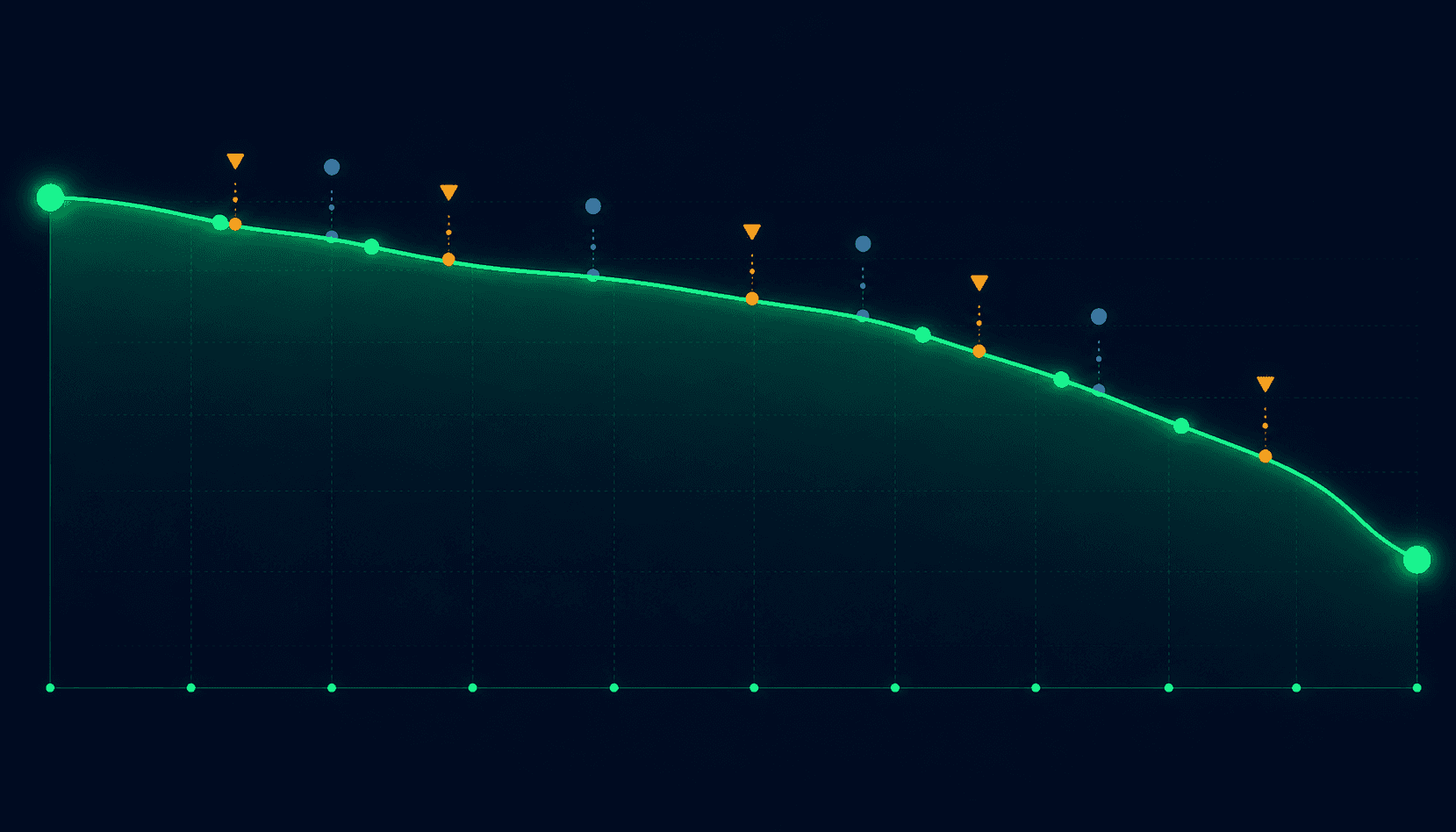
Recycled ISP accounts are particularly dangerous. When a free email provider (Gmail, Yahoo, Outlook) retires a dormant account, it may eventually assign that address to a new user. If you mail an address that was legitimate 18 months ago but now belongs to a different person, you risk an immediate spam complaint from someone who never opted in.
Anti-spam organizations also repurpose abandoned addresses as recycled spam traps -- a direct mechanism to identify and penalize senders who fail to remove inactive contacts.
The cost of a dirty list
The financial and reputational costs of poor list hygiene compound over time. The most direct costs:
Inbox placement loss
High bounce and complaint rates push your domain into the spam folder for all recipients, not just the ones causing the signals. A 2% hard bounce rate can reduce inbox placement across your entire list by 10 to 30 percentage points.
ESP overage costs
Most email service providers charge by contact count or send volume. Maintaining 50,000 contacts when 20,000 are invalid or unengaged means paying for contacts who deliver no return -- often hundreds of dollars per month.
Sending domain suspension
Sustained complaint rates above 0.3% at Gmail or above 0.5% at Yahoo Mail can result in your sending domain being blocked or temporarily suspended. Recovery requires direct intervention with the ISP and weeks of corrective sending.
Distorted analytics
Open rates and click rates calculated against an inflated list artificially depress reported metrics. A 15% open rate on a 100,000-contact list with 40,000 invalid or unengaged contacts is actually a 25% open rate against real deliverable contacts.
Hard bounces vs soft bounces
Direct answer: A hard bounce is a permanent delivery failure requiring immediate suppression. A soft bounce is a temporary failure requiring monitoring across multiple campaigns before suppression.
| Type | Cause | Action required | Timing |
|---|---|---|---|
| Hard bounce | Invalid address, non-existent domain, permanent block | Suppress immediately, never re-send | Within 24 hours of campaign |
| Soft bounce | Full inbox, server offline, message size limit | Monitor; suppress after 3 to 5 consecutive bounces | After repeated failures |
| General bounce | Unclassified rejection from receiving server | Treat as soft bounce; monitor across 3 campaigns | After repeated failures |
Your ESP will classify bounces automatically, but not always accurately. Some ESPs label all unclassified rejections as soft bounces. If an address soft-bounces 5 or more times consecutively with no indication of a temporary cause (such as an out of office auto-reply between bounces), treat it as a hard bounce and suppress it.
SMTP error codes can help decode bounce causes. Error 550 indicates a non-existent mailbox (hard bounce). Error 421 or 452 typically indicates a temporary condition (soft bounce). Error 421 repeatedly is a sign of throttling or rate-limiting, not an invalid address.
Engagement-based cleaning
An address can be technically deliverable -- no bounces, no complaints -- and still be a liability. Contacts who receive every email but never open or click are silently dragging down your engagement rate, which ISPs use as a positive signal for inbox placement.
Engagement-based cleaning removes these technically valid but behaviorally inactive contacts. The general thresholds:
- 90 days of no opens or clicks: Flag for re-engagement campaign
- 180 days of no opens or clicks: Suppress from active list after re-engagement attempt
- High-frequency senders (daily or near-daily): Compress windows to 30 days for re-engagement flagging and 60 days for suppression
- Low-frequency senders (monthly or less): Extend windows to 6 months for flagging and 12 months for suppression
Open rate reliability note: Apple Mail Privacy Protection (MPP), introduced in iOS 15, pre-fetches email content and registers opens even when the recipient never actually views the email. This inflates open rates for Apple Mail users. For segments where MPP is prevalent, weight click activity more heavily than opens when assessing engagement.
Spam traps: what they are and how to avoid them
Spam traps are email addresses that ISPs, anti-spam organizations, and email security companies maintain specifically to identify senders with poor list practices. There are two categories:
Pristine spam traps
Addresses that were never valid and never opted in to anything. They appear in harvested lists, scraped directories, and purchased data. Hitting one indicates you are mailing to contacts who never explicitly signed up.
Recycled spam traps
Real addresses that were valid and may have opted in, but have since been abandoned and repurposed as traps. They enter lists through inactivity -- contacts who signed up years ago and whose email provider retired the account. Suppressing inactive contacts is the primary defense against recycled traps.
Trap hits do not generate bounce signals -- the trap accepts the message silently and records the sender. You will not know you have hit a trap from your ESP dashboard. The signal appears in reputation data at Google Postmaster Tools (domain reputation drop) or through a third-party reputation monitoring service.
The best defenses against spam trap exposure are double opt-in at signup, real-time email validation at the point of signup, and prompt suppression of contacts inactive for 6 or more months.
Re-engagement campaigns
A re-engagement campaign is a structured attempt to revive inactive contacts before permanent suppression. Industry benchmarks suggest 5 to 15% of contacts respond positively to a well-executed re-engagement sequence -- meaning you recover some subscribers while cleanly removing the rest.
A standard 3-email re-engagement sequence:
Email 1 -- Day 0
Subject line acknowledges the absence (“We miss you” or “Still want to hear from us?”). Body reminds the contact what they subscribed for and includes a clear call to action -- either a preference update link or a simple “keep me subscribed” button.
Email 2 -- Day 3 to 5
Only sent to contacts who did not engage with Email 1. Offers an incentive if appropriate (discount code, exclusive content, early access). Keeps the preference center link prominent.
Email 3 -- Day 8 to 10
Last-chance notice for contacts who did not engage with Emails 1 or 2. States clearly that the contact will be removed from the list if they do not click to stay subscribed. After this email, non-engaging contacts move to a suppression list.
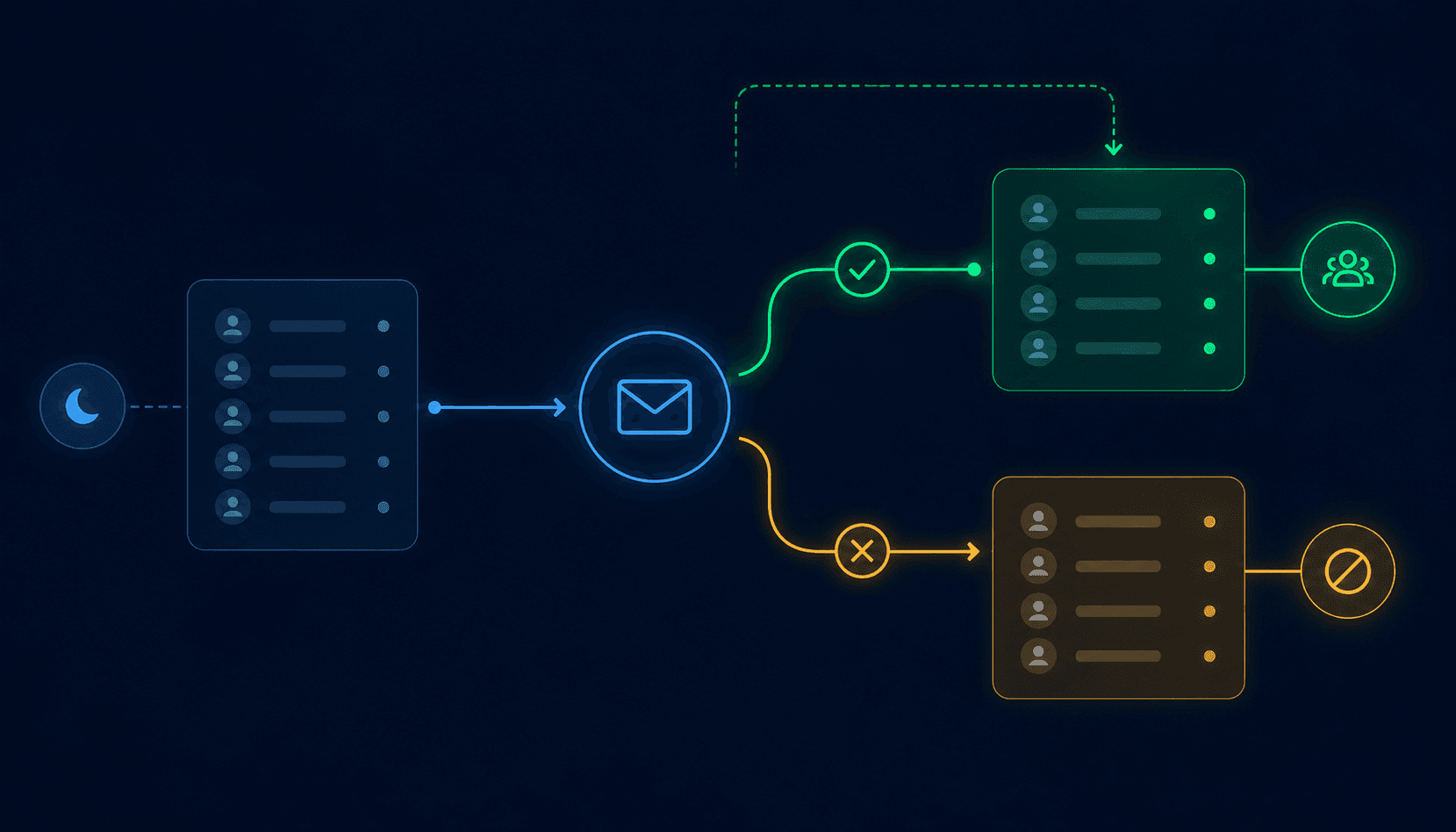
Send re-engagement emails from a subdomain or separate sending IP from your main campaign traffic if possible. This protects your primary domain reputation in the event that a high proportion of the re-engagement list complains or bounces.
Decision framework: when to clean vs re-engage vs suppress
Use this framework to decide what to do with any contact flagged as a potential hygiene risk:
| Contact signal | Action | Timing |
|---|---|---|
| Hard bounce on any campaign | Suppress immediately | Within 24 hours |
| Soft bounce 3+ times in a row | Suppress | After 3rd consecutive bounce |
| Spam complaint received | Suppress immediately | Within 24 hours |
| No open or click in 90 days | Re-engagement campaign | Start sequence immediately |
| No response to re-engagement sequence | Suppress | After sequence completes (10 to 14 days) |
| Valid address, no engagement in 180+ days, no re-engagement attempt | Re-engage, then suppress if no response | Monthly audit cycle |
| Role-based address (info@, admin@) | Review opt-in record; suppress if no individual consent | Next audit cycle |
| Unsubscribe request | Honor within 10 business days (CAN-SPAM); immediately is best practice | Same day |
Email list hygiene workflow (8-step monthly process)
The following workflow covers a complete monthly hygiene cycle. Run it after every campaign for steps 3 and 4, and monthly for the full sequence.
Email List Hygiene Workflow
Double opt-in or confirmed signup
Real-time API check at signup (NeverBounce, ZeroBounce, Kickbox)
Track opens, clicks, bounces, complaints
Hard bounce: suppress immediately / Soft bounce: flag and monitor
Flag contacts inactive 90+ days for re-engagement
3-email sequence over 10 to 14 days
Non-responders to re-engagement sequence move to suppression list
Full audit cycle + bulk re-verification every 6 months
This cycle is intentionally repeating. List decay is continuous, so hygiene must be continuous. The monthly audit is the minimum cadence. High-volume senders (100,000+ emails per month) should run engagement audits weekly.
Email hygiene vs email verification
These two practices are often confused. They are complementary, not interchangeable.
| Dimension | Email list hygiene | Email verification |
|---|---|---|
| What it does | Removes addresses based on behavioral signals (bounces, complaints, inactivity) | Checks whether an address is valid and the mailbox exists right now |
| When it runs | Continuously -- after every campaign and on a monthly audit cycle | Point-in-time -- at signup, before a bulk send, or during a list import |
| What it catches | Bounces, complainers, spam traps, engaged-but-invalid addresses over time | Invalid syntax, non-existent domains, non-existent mailboxes, disposable addresses, role-based addresses |
| What it misses | Brand-new invalid addresses that have not bounced yet | Valid addresses that go inactive or become spam traps after verification |
| Primary tools | ESP suppression management, Google Postmaster Tools, engagement scoring | NeverBounce, ZeroBounce, Kickbox, real-time API integrations |
| Can it replace the other? | No | No |
Use verification at the point of signup and before importing any legacy or third-party list. Use hygiene continuously throughout the life of the list. Neither replaces the other -- a list can pass verification on day 1 and accumulate 20% problematic contacts within 12 months without ongoing hygiene.
Email list hygiene metrics to monitor
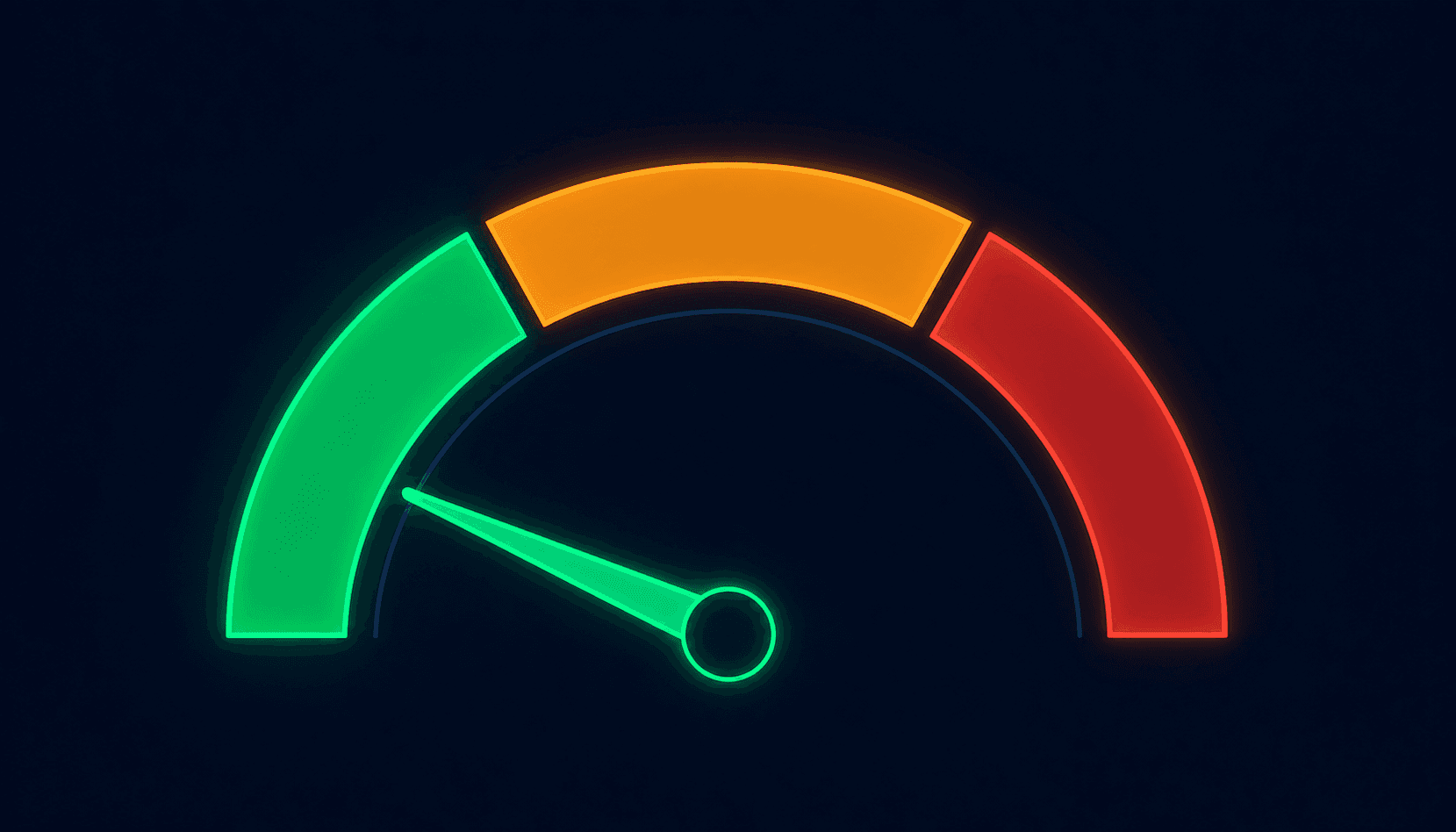
These are the core metrics to track and the thresholds that should trigger action:
| Metric | Healthy | Warning | Critical | Action at critical |
|---|---|---|---|---|
| Hard bounce rate | Below 0.5% | 0.5% to 2% | Above 2% | Pause sends, clean bounces, run bulk re-verification |
| Spam complaint rate | Below 0.05% | 0.05% to 0.1% | Above 0.1% | Pause, audit content and list source, suppress recent complainers |
| Unsubscribe rate | Below 0.2% | 0.2% to 0.5% | Above 0.5% | Audit content relevance, sending frequency, and list source |
| Open rate (engagement signal) | Above 20% | 10% to 20% | Below 10% | Segment and re-engage; suppress inactive cohort |
| List growth rate | Positive, net of suppressions | Flat | Shrinking | Audit acquisition sources and opt-in copy |
| Inbox placement rate | Above 90% | 85% to 90% | Below 85% | Full authentication audit plus list re-verification |
| Google domain reputation | High | Medium | Low or Bad | Pause, clean list, reduce send volume, and ramp back up |
Sources: Google Email Sender Guidelines, Yahoo Mail Sender Best Practices. Thresholds reflect 2026 requirements for bulk senders.
Role-based and shared email addresses
Role-based addresses are tied to a job function rather than an individual. Common examples include info@, support@, admin@, sales@, hello@, and contact@. They carry specific risks for email senders:
- Multiple people may see the email, multiplying the chance of a spam complaint from someone who did not opt in personally
- Many ESPs and spam filters apply stricter scrutiny to role-based addresses
- When the person who opted in leaves, the new person managing the inbox has no relationship with the sender
- Auto-forwarding can create duplicate deliveries that inflate engagement metrics
The best practice is to flag role-based addresses at signup using a validation API and require individual consent -- either through a name field confirmation or by declining the role-based address entirely. If role-based addresses are already on your list, audit their engagement history. Suppress those that have never engaged or that show complaint activity.
Google Postmaster Tools for hygiene monitoring
Google Postmaster Tools is a free dashboard that gives authenticated senders direct visibility into how Gmail perceives their sending behavior. It is the most authoritative free signal available for diagnosing list hygiene problems.
Key signals to monitor weekly:
Rated High, Medium, Low, or Bad. A drop from High to Medium is an early warning. Low or Bad reputation causes aggressive spam filtering across all Gmail recipients.
Gmail's view of your complaint rate. This is the most directly actionable metric. If it crosses 0.1%, investigate and clean before the next campaign.
Shows SPF, DKIM, and DMARC pass rates. Authentication failures amplify the damage of any hygiene problems. Hygiene works best with 100% authentication pass rates. See the DMARC setup guide if you see authentication failures.
Shows the rate of rejected or temporarily failed deliveries to Gmail. Spikes here indicate IP reputation issues, volume anomalies, or content triggers.
Set up Postmaster Tools by verifying domain ownership in Google Search Console or directly in the Postmaster Tools interface. Data populates within 24 to 48 hours of your first verified send after setup.
Microsoft SNDS for Outlook and Hotmail senders
Microsoft offers an equivalent monitoring tool -- Smart Network Data Services (SNDS) -- which shows IP reputation data and complaint rates for Outlook and Hotmail recipients. If a significant share of your list uses Microsoft email addresses, monitor SNDS alongside Google Postmaster Tools. A reputation drop at Microsoft often lags Google by 1 to 2 weeks and shows up as a delivery error spike before domain reputation degrades.
ESP suppression lists and how they work
Every major email service provider maintains a suppression list -- a set of addresses to which the system will never deliver, even if they appear in a campaign audience. Suppression lists typically include:
- Global unsubscribes (contacts who clicked “unsubscribe” on any campaign)
- Hard bounces (addresses where the receiving server returned a permanent failure)
- Spam complaint recipients (contacts who clicked “report spam” in their email client)
- Manual suppressions added by the sender or automatically flagged by the ESP
Suppression is different from deletion. Suppressed contacts remain in your database for compliance and audit purposes -- you need a record that someone opted out, when they opted out, and from which list. Deleting a suppressed contact without retaining an opt-out record creates a compliance gap under CAN-SPAM and GDPR.
When migrating between ESPs, export and import your full suppression list before sending a single campaign from the new platform. Failing to do so causes you to re-mail unsubscribes and hard-bounce addresses from the old system -- an immediate deliverability and compliance problem.
Email list cleaning best practices
These practices represent the operational standard for senders who maintain consistent inbox placement and protect their domain reputation over time.
Use double opt-in at the point of signup
Double opt-in requires the subscriber to confirm their address by clicking a link in a confirmation email before being added to the active list. It eliminates typos, prevents list bombing (bots submitting random addresses), and produces a record of explicit consent. Open and click rates on double opt-in lists are consistently 20 to 30 percentage points higher than single opt-in lists.
Validate addresses in real time at signup
Real-time email validation at the signup form catches invalid syntax, non-existent domains, disposable addresses (temp-mail services), and role-based addresses before they enter your list. Combining double opt-in with real-time validation catches virtually all preventable bad addresses at the source.
Never use purchased, rented, or scraped lists
Purchased lists contain addresses that never opted in to your communications. They produce high spam complaint rates, hit pristine spam traps, and violate GDPR and CAN-SPAM consent requirements. No list cleaning service can make a purchased list safe to mail -- the consent problem is not addressable with validation.
Segment before suppressing
Before suppressing a large cohort of inactive contacts, segment them by acquisition source. Contacts from a specific signup form, trade show, or import that underperform consistently point to a source-level quality problem. Suppressing without segmenting misses the opportunity to fix the upstream issue -- you will keep acquiring the same quality of contact from the same source.
Align authentication with hygiene
SPF, DKIM, and DMARC authentication records tell receiving mail servers that your emails are legitimately from your domain. Without them, even a perfectly clean list will see reduced inbox placement. Authentication is the foundation -- hygiene is the ongoing maintenance. Both are required. If your authentication is incomplete, see the SPF setup guide for Google Workspace and the DKIM setup guide for Microsoft 365.
Make unsubscribing easy
A prominent unsubscribe link reduces spam complaints by giving dissatisfied contacts a clean exit rather than a “report spam” option. CAN-SPAM requires an unsubscribe mechanism in every commercial email and a 10-business-day honor window. Best practice is one-click unsubscribe honored immediately. Google and Yahoo Mail now require list-unsubscribe headers for bulk senders, which enables one-click unsubscribe directly from the inbox interface.
Frequently asked questions
What is email list hygiene?+
How often should I clean my email list?+
What bounce rate is too high?+
What spam complaint rate is acceptable?+
Does removing subscribers improve deliverability?+
What is the difference between a hard bounce and a soft bounce?+
What engagement window should I use before suppressing a contact?+
What is a spam trap and how do I avoid it?+
What is Google Postmaster Tools?+
Can I resubscribe suppressed contacts?+
What tools clean email lists?+
How long does sender reputation recovery take?+
What is a role-based email address?+
What is a re-engagement campaign?+
Does email list hygiene affect unsubscribe rates?+
Does email verification replace email list hygiene?+
Authentication guides -- complete the setup
List hygiene and email authentication work together. A clean list with broken authentication still lands in spam. These guides cover each authentication record:
- How to set up a DMARC record -- protect your domain from spoofing and monitor authentication failures
- SPF setup for Google Workspace -- authorize your sending domain for Gmail and Google Workspace
- DKIM setup for Microsoft 365 -- configure cryptographic email signing for Outlook and Exchange senders
Final verdict
Email list hygiene is not optional for senders who depend on inbox placement. It is the operating baseline. Hard bounce removal is immediate and non-negotiable. Engagement pruning and re-engagement campaigns are monthly work. Google Postmaster Tools monitoring is weekly.
The math is straightforward: a smaller list of engaged contacts delivers more revenue per send, lower ESP costs per converted customer, and a sender reputation that compounds positively over time. A large list with poor hygiene delivers the opposite -- inflated subscriber counts masking declining inbox placement and rising costs.
Start with the 8-step workflow in this guide. Run it monthly. Add real-time validation at your signup forms. Use double opt-in wherever your conversion rate allows. Keep authentication records correct. The combination of clean lists and proper authentication is what separates senders with 95% inbox placement from those at 60%.
About this guide
Written by the Vortenza Editorial Team and reviewed for accuracy against the Google Email Sender Guidelines (2024), the Yahoo Mail Sender Best Practices, and the FTC CAN-SPAM Act Compliance Guide. Last updated June 12, 2026. This guide covers general best practices -- consult your legal counsel for jurisdiction-specific compliance requirements under GDPR, CASL, or other regional laws.